Editor Guide / Getting Started
Your First Pattern: Three Ways to Start
There's no single right way to begin a pattern here — pick whichever of these three starting points matches what you already have.
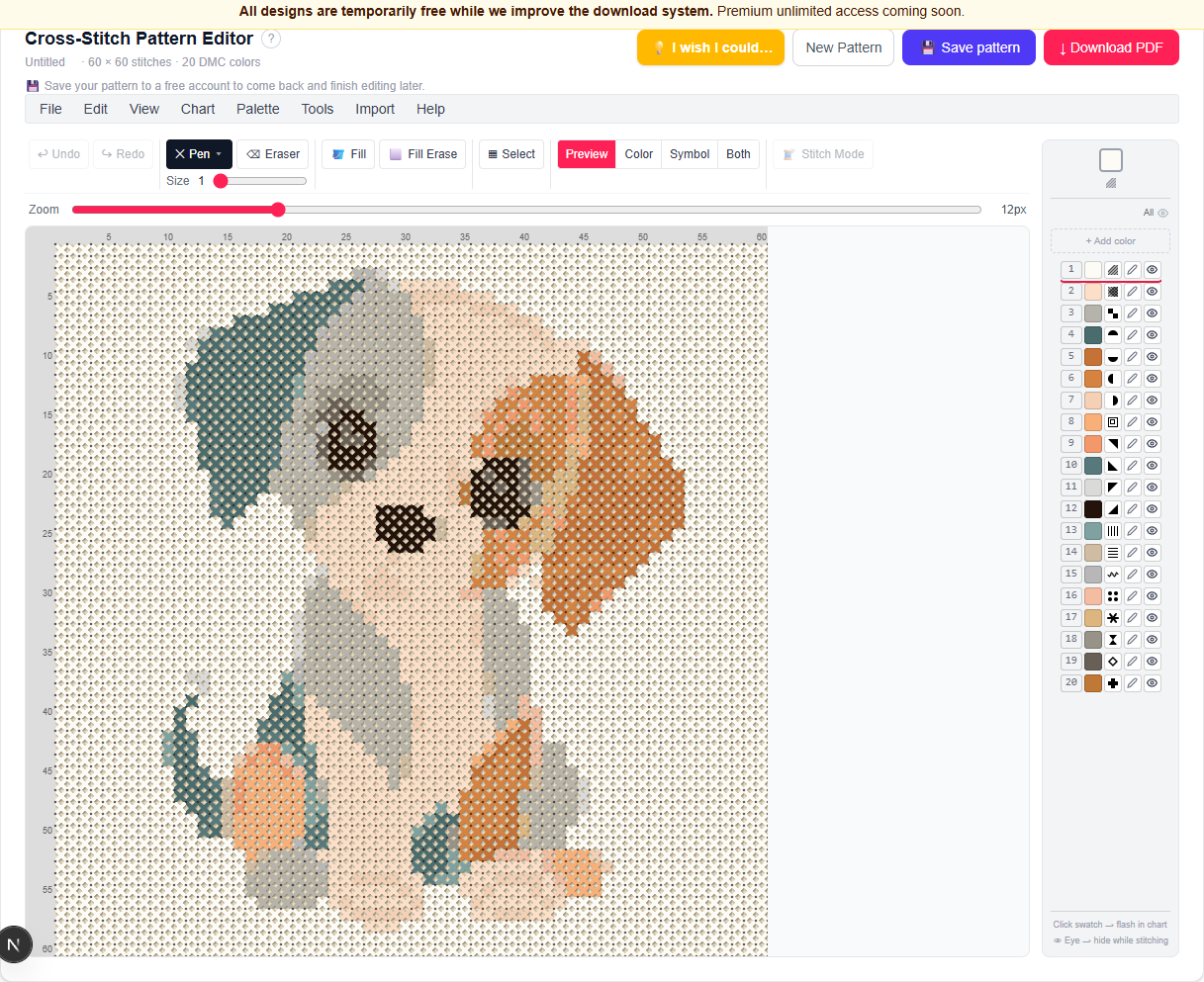
1. From a photo
The fastest way to a finished pattern: open the editor, click Upload Your Photo (or Try a Sample Image if you just want to see how it works), and drag in a picture. Choose a width and height in stitches and how many DMC thread colors to use, then click Generate pattern.
You land straight in the full editor with the converted result — nothing is final at this point. Repaint cells, merge colors, resize, or mirror the design before you download anything.
- Simple, high-contrast subjects convert best — a pet portrait, a single flower, a clear silhouette against a plain background.
- A good beginner size is 50–80 stitches wide. Larger sizes preserve more detail but take longer to stitch.
- 10–15 colors is a manageable start; add more later if you want finer detail.
2. From a blank canvas
Prefer to design by hand? Choose New Pattern in the editor to start from an empty 80×80 grid with a starter palette of 16 common DMC colors. Every tool — pencil, fill, shapes, mirror, resize — works exactly the same whether your pattern started from a photo or from nothing at all.
3. From an existing catalog design
Browsing the catalog and want to tweak a design instead of starting over? Any pattern in the catalog has an Open in editor option on its page — it loads straight into the same editor, fully editable, without touching the original catalog copy. Saving creates your own separate copy.
Ready to try it in the editor?
Open the editor →Frequently asked questions
- Do I need an account to start a pattern?
- No — converting a photo, starting from a blank canvas, and editing the result are all free with no account. An account is only needed once you want to save a pattern or download the PDF.
- Can I change my mind about the size or colors after generating?
- Yes — re-open Import → From Photo… at any time to convert the same photo again with different settings, or use Chart → Resize… to change dimensions on the pattern you already have.
Other guides
Last updated 2026-07-30.