Editor Guide / Stitching
Stitch Mode: Never Lose Your Place While Stitching
Stitch Mode is a separate mode from editing — once your pattern is finished and saved, it lets you mark cells as you physically stitch them, so you always know where you left off.
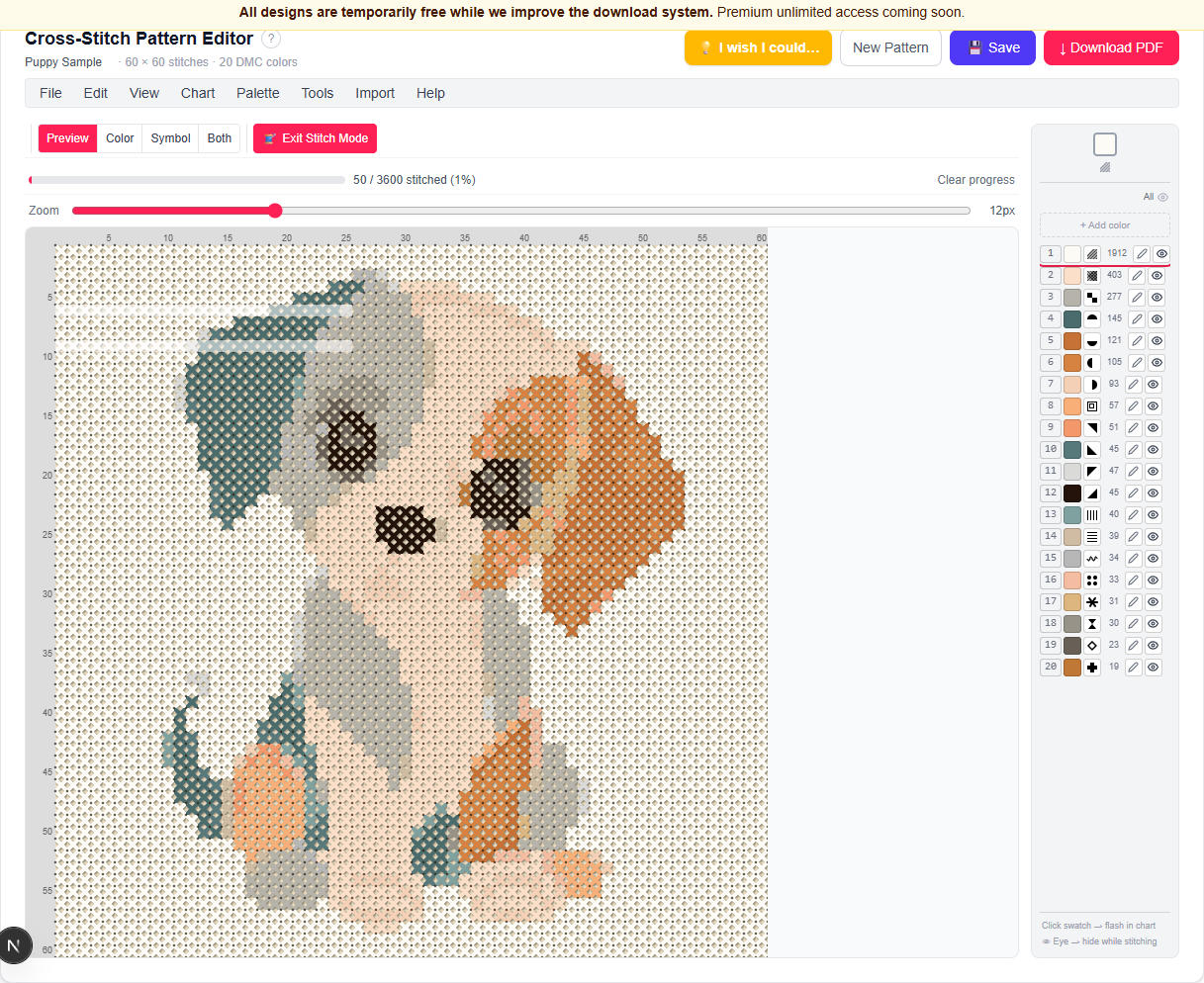
Turning it on
The 🧵 Stitch Mode button sits next to the view-mode buttons (Stitched / Color / Symbol / Both) above the canvas. It's disabled with a tooltip until your pattern is saved — progress needs something stable to attach to, and saving already requires a free account. Once saved, click it to switch in.
While Stitch Mode is on, the drawing toolbar hides and a progress bar appears showing how many stitches are marked done, as a count and a percentage.
Marking stitches
Tap or click a cell to mark it done — it dims so your eye reads remaining work at a glance. Drag across several cells to mark a whole area at once; a single drag either marks or un-marks consistently, based on the state of the cell you started on, so you never get a flickering mix of on/off within one stroke.
Spotlighting a color
Click any color in the palette while in Stitch Mode to spotlight it — every other color dims so the thread you're currently working with stands out clearly. Click the same color again to turn the spotlight off.
Syncing across devices
Progress saves automatically a couple of seconds after you stop marking, and is tied to your saved pattern — reopen it later on a phone, tablet, or a different computer while logged in, and your marks are exactly where you left them.
Starting over
Clear progress, next to the progress bar, resets every mark back to unstitched after a confirmation prompt — useful if you're restarting the same pattern as a fresh project. Resizing, mirroring, or using Size to Design also clears progress automatically, since a changed layout would make the old marks point at the wrong cells.
Ready to try it in the editor?
Open the editor →Frequently asked questions
- Why is the Stitch Mode button disabled?
- It needs a saved pattern to attach progress to. Save your pattern first (which requires a free account) and the button becomes active.
- Will my progress still be there if I close the tab and come back tomorrow?
- Yes — progress is saved to your account, not just your browser, so it's there whenever you reopen the pattern, on any device.
- Does marking stitches cost anything?
- No — Stitch Mode is free, like the rest of the editor right now.
- What happens to my progress if I resize the pattern afterward?
- It clears automatically. A resize shifts every coordinate, so old marks would no longer line up with the right cells — better to start progress tracking fresh than have it silently wrong.
Other guides
Last updated 2026-07-30.